⚡ Generating Match Reports from Supabase Data
A step-by-step walkthrough of Interzoid's Postgres Data Matching Wizard, connected directly to a Supabase database
This guide demonstrates Interzoid's data matching tool for Postgres using Supabase. The goal is to identify duplicate records, perform entity resolution, discover inconsistent data, and show how you can join tables using data that is not exactly the same, but that clearly represents the same entity: an organization name, a person name, an address, and so on.
Supabase is a cloud-based development platform built around a full PostgreSQL database. It provides the convenience of a managed service while supporting standard SQL, database tables, and PostgreSQL connection methods. In this demonstration, Interzoid connects directly to a Supabase database using a standard PostgreSQL connection string, allowing us to process and improve data without requiring a custom integration.
Why Matching Matters
Traditional SQL joins and GROUP BY operations depend on values being identical. Real data rarely cooperates. The same customer arrives as "Acme Corp.", "ACME Corporation", and "Acme Inc" across three different systems, and every exact-match query treats them as three separate companies. Interzoid's matching algorithms generate a similarity key for each value, a short string derived from the meaning and structure of the data rather than its exact characters. Records that represent the same real-world entity receive the same key, which turns fuzzy, human-entered values into something you can sort, group, and join on.
What You Will Need
- An Interzoid API Key: Register for an account to obtain your unique API license key. This key authenticates your requests and tracks usage credits.
- A Supabase Account and Project: Free to create at Supabase.com. Every project includes a full PostgreSQL database.
- Data to Match: Any table containing names, companies, or addresses. Sample data is provided below if you want to start from scratch.
- Available Credits: Each record processed consumes one API credit. Make sure your account has enough credits for the number of records in your table.
1Choose or Load Your Supabase Table
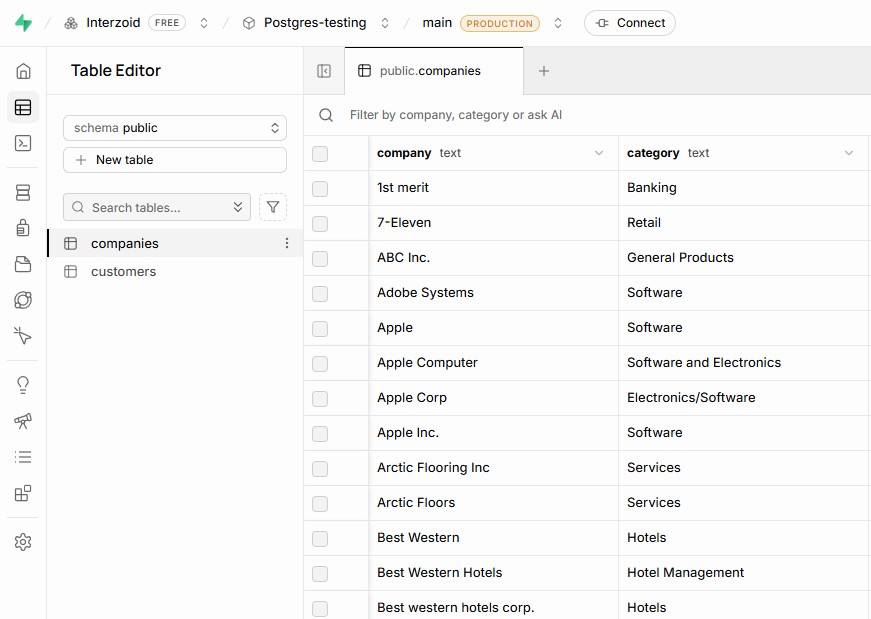
Determine which data table in Supabase you will connect to and generate an Interzoid Match Report with. Any table containing company names, individual names, or street addresses is a good candidate.
If you do not have sample data, you can load the following CSV file into a Supabase table using Supabase's import capability. You can get this sample data at the following address:
https://dl.interzoid.com/csv/companies.csvIf you do not have a Supabase account set up yet, it is easy to create one at Supabase.com. Create your first database, then load the sample data into a table.
Importing the Sample CSV
- Open the Table Editor: From your Supabase project dashboard, select Table Editor in the left navigation.
- Start the import: Click New table for a new, empty project, or Insert on an existing table, then choose Import Data from CSV.
- Upload the file: Drop in the downloaded
companies.csv. Supabase reads the header row, infers a column for each field, and shows a preview before importing. - Name the table: Give it a recognizable name such as
companies, then save. The table is created in thepublicschema of thepostgresdatabase.
2Copy Your Supabase Connection String
Interzoid connects to Supabase the same way any other PostgreSQL client does, using a standard connection string. Supabase generates this for you, so there is nothing to compose by hand.
- Click Connect: The Connect button sits at the top of your Supabase project dashboard. It opens a panel listing every connection method available for your project.
- Choose Session pooler: Under the connection string options, select the Session pooler string. It listens on port
5432, supports the full PostgreSQL feature set, and is reachable over IPv4, which makes it the most broadly compatible choice. - Copy the string: Use the copy control next to the string, then replace the
[YOUR-PASSWORD]placeholder with your actual database password.
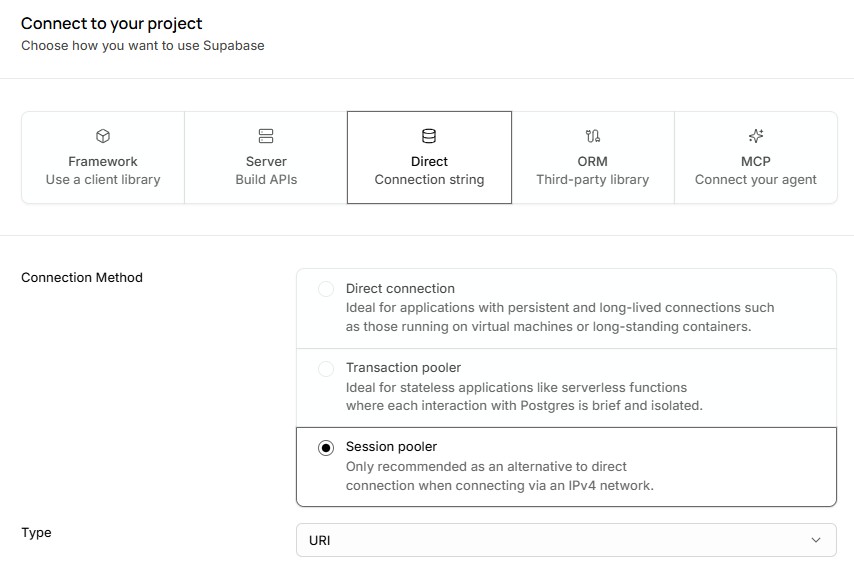
A Supabase session pooler connection string looks like this:
postgres://postgres.your-project-ref:YOUR-PASSWORD@aws-0-us-east-1.pooler.supabase.com:5432/postgres?sslmode=requireReading the Connection String
- Username: On pooler connections the project reference is appended to the database user, giving
postgres.your-project-ref. This is expected and is not a typo. - Host: The pooler host includes your project's region, such as
aws-0-us-east-1.pooler.supabase.com. Your region will differ. - Port: Use
5432for session mode. Port6543is transaction mode, intended for serverless workloads. - Database: Supabase names the default database
postgres. - SSL: Supabase requires TLS. Append
?sslmode=requireif it is not already present in the string you copied.
Supabase also offers a direct connection at db.your-project-ref.supabase.co. On newer projects this endpoint resolves to IPv6 only, so it will fail from IPv4-only networks unless the IPv4 add-on is enabled. The session pooler avoids the issue entirely, which is why it is the recommended choice for this walkthrough.
@, :, /, ?, or #, they must be percent-encoded in the URL form. You can avoid the encoding entirely by using the keyword form instead: host=... port=5432 user=... password=... dbname=postgres sslmode=require.
3Launch the Wizard and Enter Your API Key
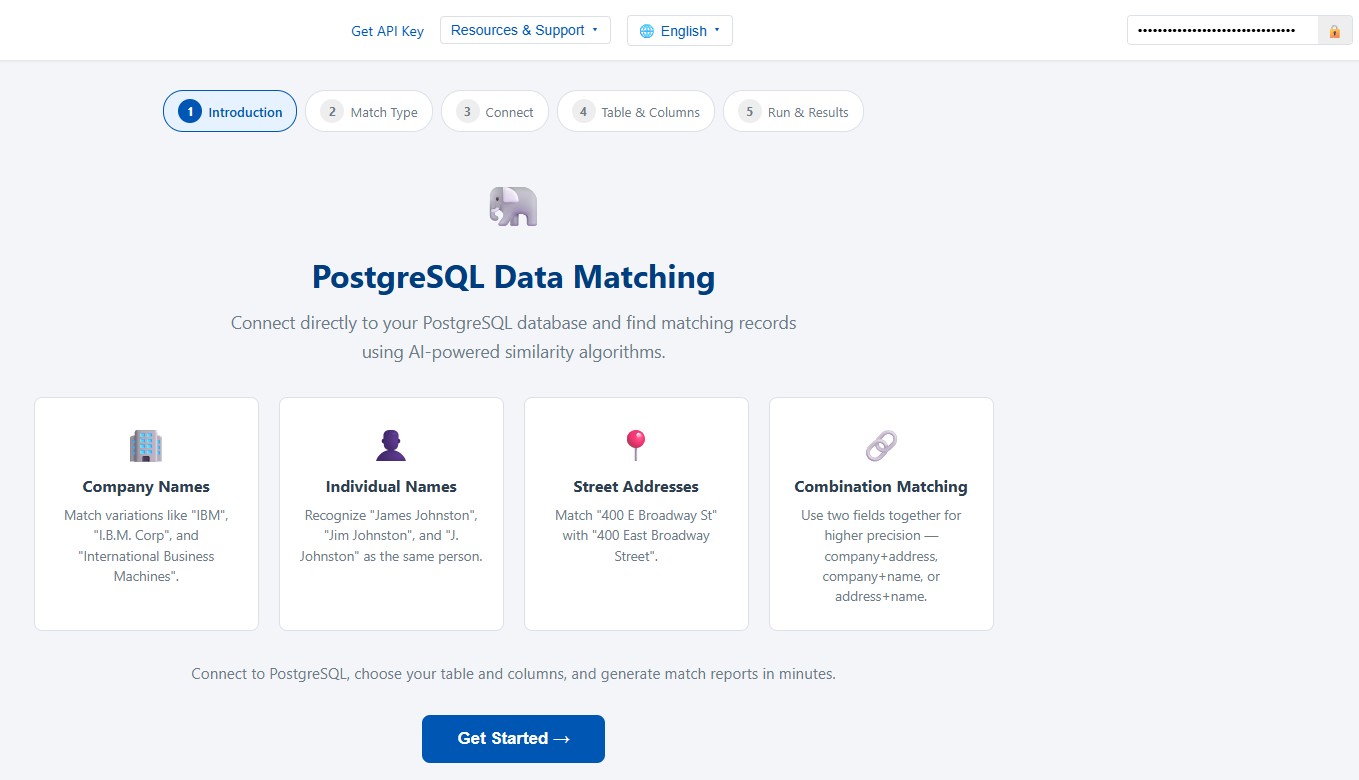
Open the Postgres Data Matching Wizard in your browser. Before beginning, enter your Interzoid API key in the top-right area of the header bar. Your key is saved in your browser for future sessions.
- API Key Field: Type or paste your API key into the input field in the header. Click the lock or eye icon to toggle visibility.
- Check Credits: Click the Credits button to verify your current balance before starting a job. The sample company file is small, so a demonstration run costs very little.
- Language Selection: Click the language dropdown in the navigation bar to switch between any of the 17 supported languages. The entire interface updates immediately. You can also set the language by URL parameter:
?lang=frfor French,?lang=jafor Japanese, and so on.
Once your API key is entered, click Get Started on the introduction screen to begin.
4Select a Matching Function
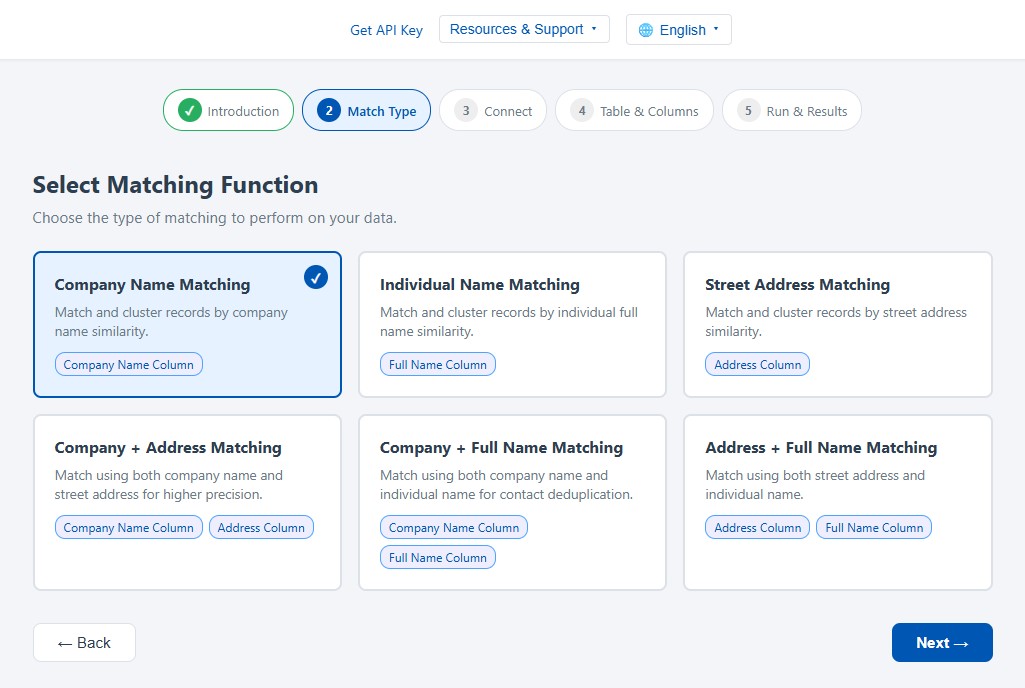
The wizard presents six matching functions. Choose the one that fits your data and use case. Each function card shows a description and the column parameters it requires.
Single-Column Functions
| Function | Use Case | Column Required |
|---|---|---|
| Company Name Matching | Match variations like "IBM", "I.B.M. Corp", "International Business Machines" | Company Name |
| Individual Name Matching | Match "James Johnston", "Jim Johnston", "J. Johnston" as the same person | Full Name |
| Street Address Matching | Match "400 E Broadway St" with "400 East Broadway Street" | Address |
Combination Functions
These functions use two columns together for higher matching precision:
| Function | Use Case | Columns Required |
|---|---|---|
| Company + Address | Higher precision matching using both company name and street address | Company Name, Address |
| Company + Full Name | Contact deduplication using company and individual name | Company Name, Full Name |
| Address + Full Name | Person-at-address matching using address and individual name | Address, Full Name |
For the sample company data, select Company Name Matching. Click the card for your chosen function, then click Next.
5Connect to Supabase
This is where the Supabase connection string from Step 2 comes in. The wizard connects to PostgreSQL in real time and presents the available objects at each level through cascading dropdown menus.
Connection Flow
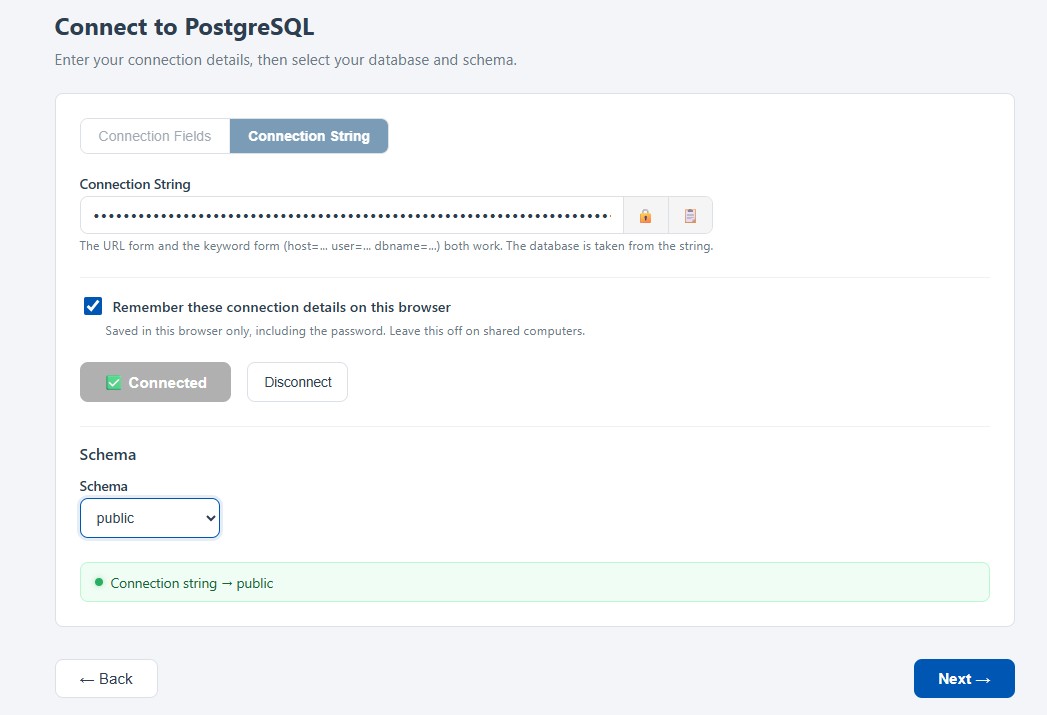
- Switch to connection string mode: Use the toggle at the top of the form to select the connection string option rather than individual fields.
- Paste your string: Drop in the Supabase session pooler string with your real password substituted for the placeholder. The field is masked by default. Use the eye icon to reveal it and the clipboard icon to copy it back out.
- Click Connect: The wizard validates the connection. Because the database name is already carried in the connection string, the database dropdown is skipped and you go straight to schema selection.
- Select the schema: Choose
public, which is where Supabase places tables created through the Table Editor. Internal schemas such aspg_catalogandinformation_schemaare filtered out of the list.
Using Connection Fields Instead
If you prefer to fill in the fields individually, take the values from the same Supabase connection string: host is aws-0-your-region.pooler.supabase.com, port is 5432, username is postgres.your-project-ref, and SSL Mode is require. You will then select postgres from the database dropdown before choosing a schema.
Saving Your Connection Details
Below the credentials is a Remember these connection details on this browser toggle. It is off by default, and nothing connection-related is saved until you turn it on. When enabled, the wizard stores your connection mode, host, port, username, password, SSL mode, and connection string in your browser. When disabled, any previously saved values are erased immediately. Because the stored values include your password, leave this toggle off on shared computers.
The wizard only reads from your database, and it is good practice to connect with a role that can do nothing else. In the Supabase SQL Editor, you can create a dedicated read-only role in a few seconds:
CREATE ROLE interzoid_reader LOGIN PASSWORD 'strong-password-here';
GRANT CONNECT ON DATABASE postgres TO interzoid_reader;
GRANT USAGE ON SCHEMA public TO interzoid_reader;
GRANT SELECT ON ALL TABLES IN SCHEMA public TO interzoid_reader;
ALTER DEFAULT PRIVILEGES IN SCHEMA public
  GRANT SELECT ON TABLES TO interzoid_reader;
When connecting through the Supabase pooler with a custom role, append your project reference to the user name in the same way the default user does, giving interzoid_reader.your-project-ref. You can revoke access at any time by dropping the role or revoking its privileges.
5432 rather than 6543, and that SSL mode is set to require.
6Select Your Table, Columns, and Options
Choose the table to match against and configure which columns to use for matching and which columns to include in the output.
Table Selection
The wizard presents a dropdown of all tables and views available in the schema you selected. Choose the table holding the records you want to match, such as the companies table you imported in Step 1. Once selected, the wizard loads the column names from that table in their natural column order.
Match Columns
For each matching parameter required by your chosen function, select the corresponding column from the dropdown. Having chosen Company Name Matching, select the column containing company names.
- Single-column functions: Select one column for the matching parameter.
- Combination functions: Select two different columns, one for each parameter. The two columns must be different.
Output Columns
Use the checkboxes to select which columns you want to include in the match report output. At least one column must be selected. The match columns are automatically included even if you do not check them separately, which ensures the data you matched on always appears in the results.
Output Options
- Show Similarity Keys: When enabled (the default), each output record includes the generated similarity key as the last column. Records sharing a key are matches. Disable this if you want clean output with only the selected data columns.
- Matches Only: When enabled (the default), only records that have at least one other matching record are shown. Disable this to see every record in the table after processing, sorted by similarity key. If you plan to load the results back into Supabase, turn this option off. See Step 9 for why.
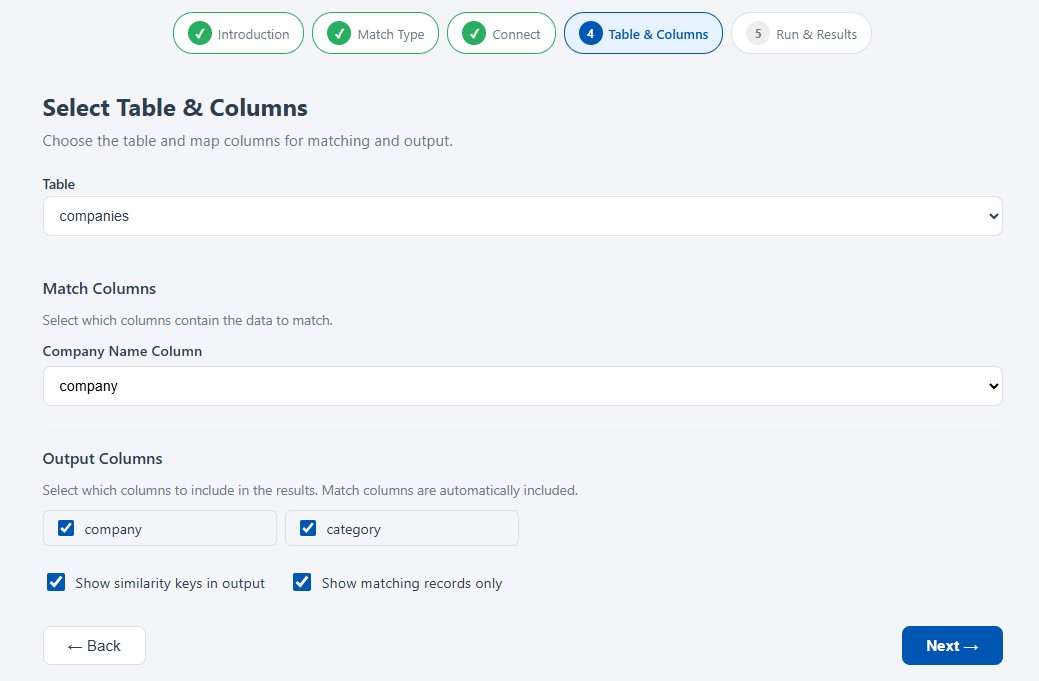
Click Next when your selections and options are configured.
7Review and Run the Match
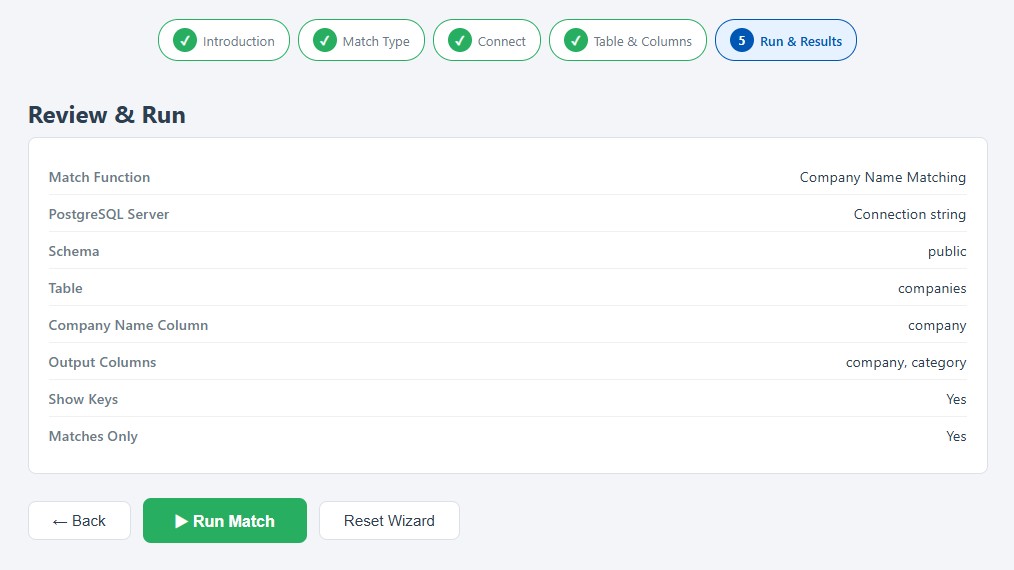
The final screen shows a summary of all your selections: matching function, server, SSL mode, database, schema, table, column assignments, and output options. Review these carefully before proceeding.
Click the green Run Match button to start processing. The wizard will:
- Validate your API key and check that your account has sufficient credits for the job.
- Connect to Supabase and read the selected columns from your table.
- Process each record through the selected matching algorithm using concurrent workers for performance.
- Generate the match report with records sorted and grouped into clusters of matching entries.
A progress indicator is shown while the job runs. Processing time depends on the number of records. The sample company file completes in seconds, while very large tables (up to 500,000 records) may take a minute or more.
8Interpret the Match Report
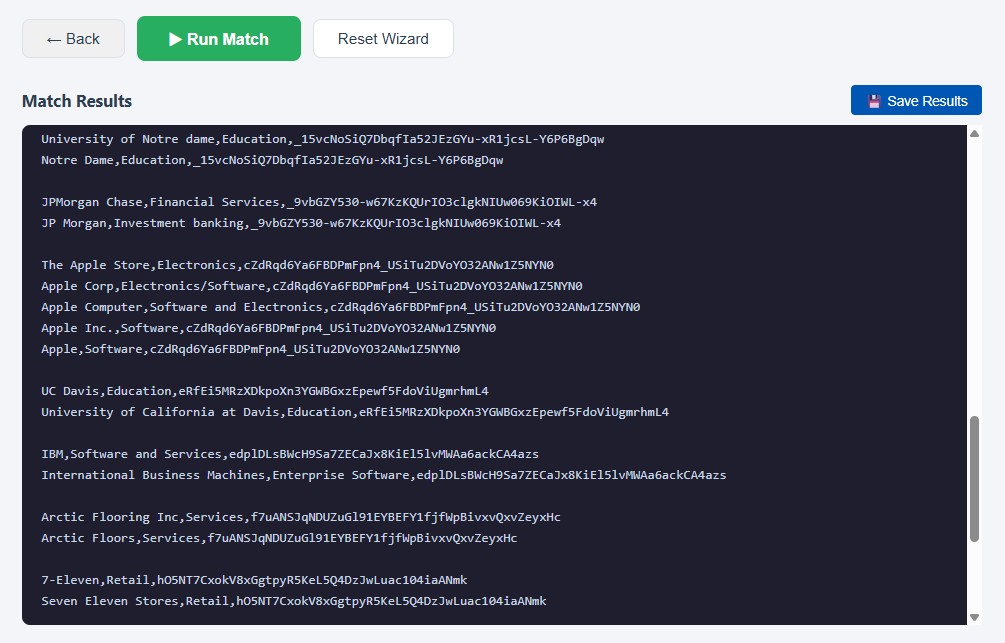
The match report appears in the results panel at the bottom of the screen. Records are organized into clusters, groups of records that the AI has determined to be matches. Each cluster is separated by a blank line for readability.
Example Output
For a company name match on a Supabase table with columns company, address, city, state and similarity keys enabled:
IBM Corporation,1 New Orchard Rd,Armonk,NY,d477E1d7sG6dja3hDNsk9P
I.B.M. Corp,1 New Orchard Road,Armonk,NY,d477E1d7sG6dja3hDNsk9P

Microsoft Inc.,1 Microsoft Way,Redmond,WA,k8Rp2mNx4wQjL9vB3cYh7T
Microsoft Corporation,One Microsoft Way,Redmond,WA,k8Rp2mNx4wQjL9vB3cYh7T
MSFT Corp,1 Microsoft Way,Redmond,WA,k8Rp2mNx4wQjL9vB3cYh7T
In this example, the first cluster contains two records identified as variations of IBM, and the second cluster contains three records identified as variations of Microsoft. The last column in each row is the similarity key. All records sharing the same key are considered matches, even though not one of the company name values is spelled identically to another.
What the Clusters Tell You
- Duplicate records: Two or more rows in the same cluster that should be a single record. These are candidates for merging.
- Inconsistent data: Clusters where the entity is clearly the same but the formatting varies. These reveal where standardization is needed upstream.
- Entity resolution: A cluster establishes that separate rows refer to one real-world organization, person, or location, which is the foundation for building a single view of a customer.
- Join keys: The similarity key gives you something to join on across tables where no shared identifier exists. Two tables processed with the same matching function produce the same key for the same entity.
9Save and Use Your Results
Click the Save Results button above the results panel to download the match report as a CSV file. On supported browsers, a save dialog appears allowing you to choose the file name and location. On other browsers, the file downloads automatically.
The saved file is clean, delimited text that can be imported directly into spreadsheets, databases, or other data processing tools for further analysis.
Bringing the Results Back into Supabase
If your goal is to load the results back into Supabase rather than simply review them, go back to the options in Step 6 and uncheck the Matches Only option, leaving Show Similarity Keys enabled.
With Matches Only turned off, every input row is included in the output with its similarity key appended, not just the rows that landed in a cluster. That gives you a complete, one-to-one copy of your source data with a new key column, which is exactly what you want to load back into a Supabase table. Records that matched nothing still carry a key, so nothing is silently dropped and row counts reconcile against the original table.
Import the saved file through the Supabase Table Editor using the same CSV import you used in Step 1. Once the keyed data is in a table, matching becomes an ordinary SQL operation, and you can perform fuzzy joins within your Supabase data tables by joining on the similarity key instead of on exact text:
-- Count the records in each match cluster
SELECT similarity_key, COUNT(*) AS record_count
FROM match_results
GROUP BY similarity_key
HAVING COUNT(*) > 1
ORDER BY record_count DESC;

-- Fuzzy join: match customers to prospects on entity
-- similarity rather than on exact text
SELECT c.company, p.company, c.similarity_key
FROM customer_matches c
JOIN prospect_matches p ON c.similarity_key = p.similarity_key;similarity_key for the appended key column, when the receiving tool expects field names, or leave it off for pipelines that read raw data rows.
Because Supabase provides a full PostgreSQL database with standard connection methods, Interzoid works with it exactly as it does with any other PostgreSQL server, with no custom integration and no data export. The result is a fast path from raw, inconsistent records to a clean match report you can act on, whether that means merging duplicates, standardizing entries, resolving entities across systems, or joining tables that share no common key. If you have any questions or need assistance, do not hesitate to reach out to our support team.