Fuzzy File Merge Wizard
Match and merge two files into one, using AI-powered fuzzy matching to join records even when the data is inconsistent
The Merge Wizard is a browser-based, step-by-step tool that combines two CSV or TSV files into a single merged output by matching records on the columns you choose. It uses Interzoid's AI-powered similarity algorithms to join records even when the connecting values are written inconsistently: company name variations, individual name differences, and address formatting mismatches that would cause an exact join or spreadsheet lookup to fail.
You select a primary file and a file to match, define one or more match criteria, choose exactly which columns appear in the output, and download the merged result along with exception reports of unmatched records from both files. The wizard supports 17 languages, works in any modern browser, and requires no code.
1Prerequisites
Before using the Merge Wizard, you will need:
- An Interzoid API Key: Register for an account and obtain your unique API license key. This key authenticates your requests and tracks usage credits.
- Two CSV or TSV Data Files: Prepare the two files you want to merge. The primary file drives the merge; the file to match supplies the columns that are appended to it. Each file needs at least one column suitable for matching against the other (company names, individual names, street addresses via fuzzy matching, or other data values that should match exactly).
- Available Credits: Every record of both files consumes at least one API credit, and each AI fuzzy match criterion consumes one credit per record. For example, merging a 1,000-record file with a 2,000-record file using one fuzzy criterion requires 3,000 credits. Verify your balance covers the combined size of both files before starting.
2Launch the Wizard and Enter Your API Key
Open the Merge Wizard in your browser. Before beginning, enter your Interzoid API key in the top-right area of the header bar. Your key is saved in your browser for future sessions.
- API Key Field: Type or paste your API key into the input field in the header. Click the lock/eye icon to toggle visibility.
- Check Credits: Click the Check Credits button to verify your current credit balance before starting a job. The balance refreshes automatically after each merge completes.
- Go to My Account: Use the Go to My Account button next to it to open your account management page for purchasing credits or reviewing usage.
- Language Selection: Click the language dropdown in the navigation bar to switch between any of the 17 supported languages. The entire wizard interface updates immediately. You can also set the language via URL parameter:
?lang=frfor French,?lang=jafor Japanese, etc.
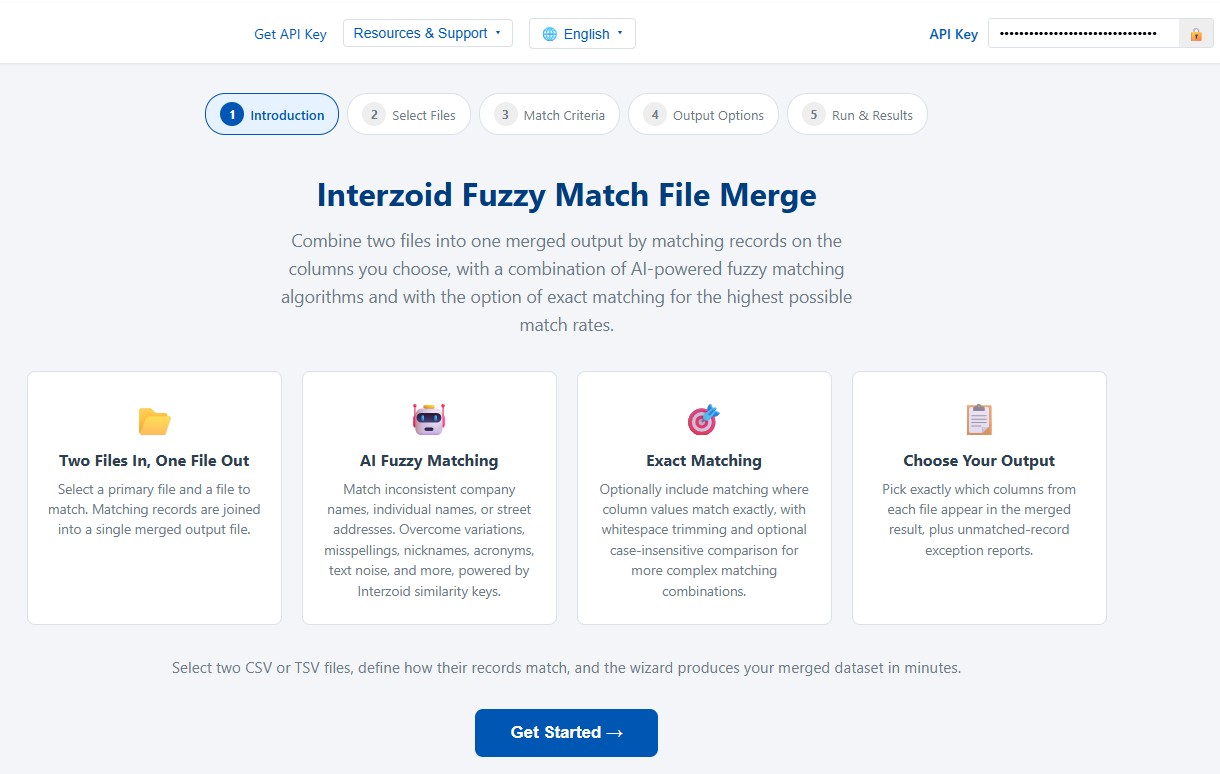
Once your API key is entered, click Get Started on the introduction screen to begin the wizard.
3Select Your Two Files
The first step presents two upload panels, one for each file:
- File 1: Primary File. Your main dataset. The merged output follows the record order of this file.
- File 2: File to Match. The second dataset whose selected columns of matching records are appended to the primary file.
Click each upload area to browse for a local file. For each file, the wizard will:
- Auto-detect the file format from the extension (
.csv,.tsv). For ambiguous extensions such as.txt, the format is guessed from the content and a toggle appears so you can correct it. - Verify the file is properly formed before anything is uploaded: the file must be text (not binary), non-empty, every quoted value must be closed, and every record must have the same number of columns. If a problem is found, a specific error message identifies the offending record and the file is not processed.
- Display a preview of the first several rows so you can confirm the data and column structure.
Header Rows
Each file panel has a checkbox, on by default, indicating that the file's first row is a header row containing column names. When enabled, the preview highlights the header row in blue with a "First row = header" badge, the header row is excluded from matching and billing, and its names are used as column labels throughout the wizard and in the output. Uncheck it for files without headers; columns are then labeled Column 1, Column 2, and so on.
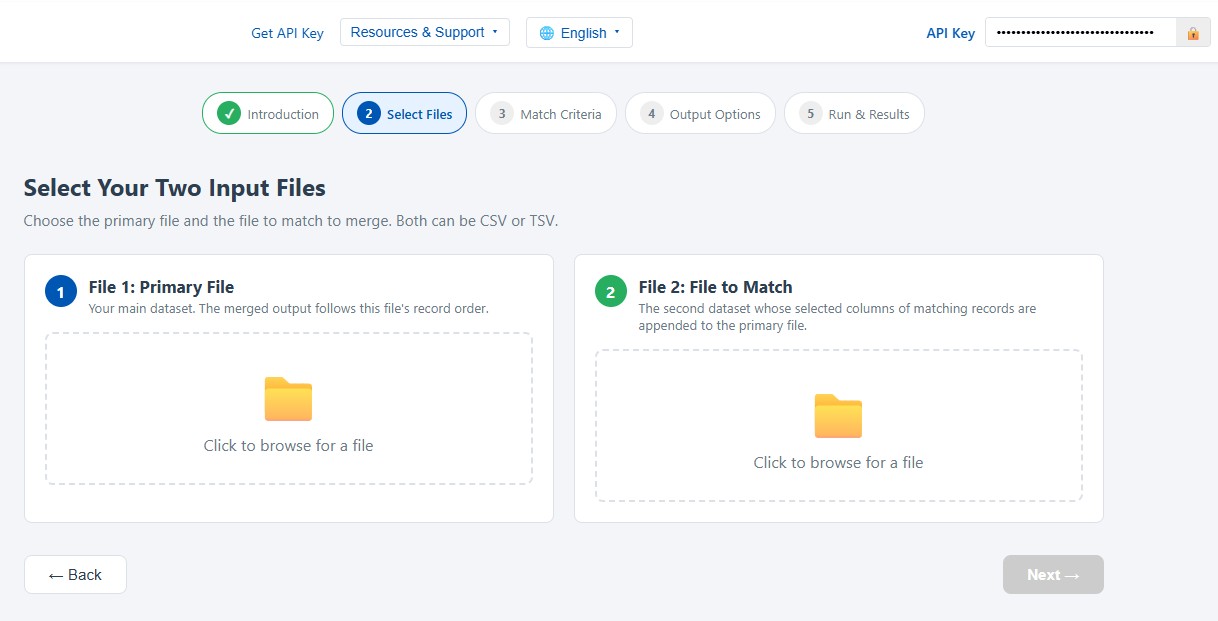
When both files are uploaded, validated, and previewing correctly, click Next to continue.
4Define Match Criteria
Match criteria control how records from the two files are joined. Each criterion pairs one column from File 1 with one column from File 2 and specifies how those values must match. Records merge only when EVERY criterion matches: criteria are combined with AND, not OR.
AI Fuzzy Match (default)
Fuzzy criteria use Interzoid's AI-powered similarity keys to match values that are written differently but represent the same real-world entity. Choose the similarity type that fits the data in the paired columns:
| Similarity Type | Use Case |
|---|---|
| Company Name | Match variations like "IBM", "I.B.M. Corp", "International Business Machines" |
| Individual Name | Match "James Johnston", "Jim Johnston", "J. Johnston" as the same person |
| Street Address | Match "400 E Broadway St" with "400 East Broadway Street" |
Exact Match
Exact criteria join records where the paired column values agree literally, with automatic whitespace trimming and an optional case-insensitive comparison. Exact matching is useful for postal codes, cities, regions, identifiers, and any column that should agree character for character to be considered a match.
Combining Multiple Criteria
Click Add Another Match Criterion to stack criteria. An AND connector appears between criterion cards to make the semantics visible. Each additional criterion makes matching stricter (higher precision, fewer matches), not broader. Common combinations include:
- Fuzzy company name + exact postal code: connect organizations while keeping locations distinct.
- Fuzzy individual name + fuzzy address: link people and households across inconsistent lists.
- Fuzzy company name + fuzzy contact name: reconcile account-and-contact relationships across CRM exports.
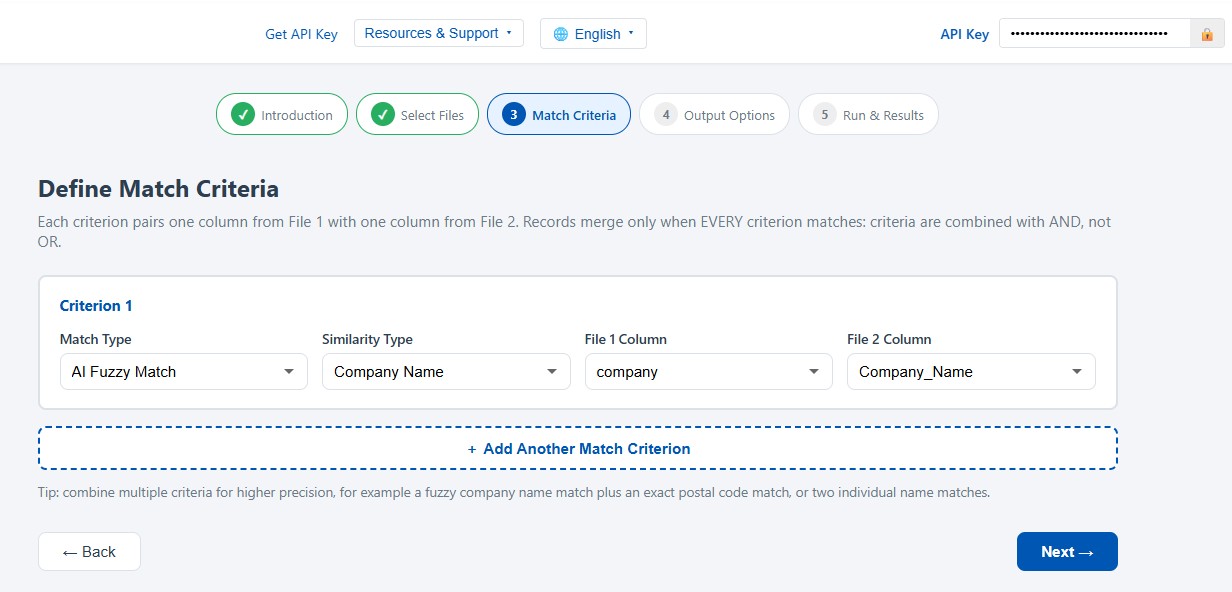
When all criteria are complete, click Next to proceed.
5Choose Output Columns and Options
This step controls exactly what the merged output contains.
Output Columns
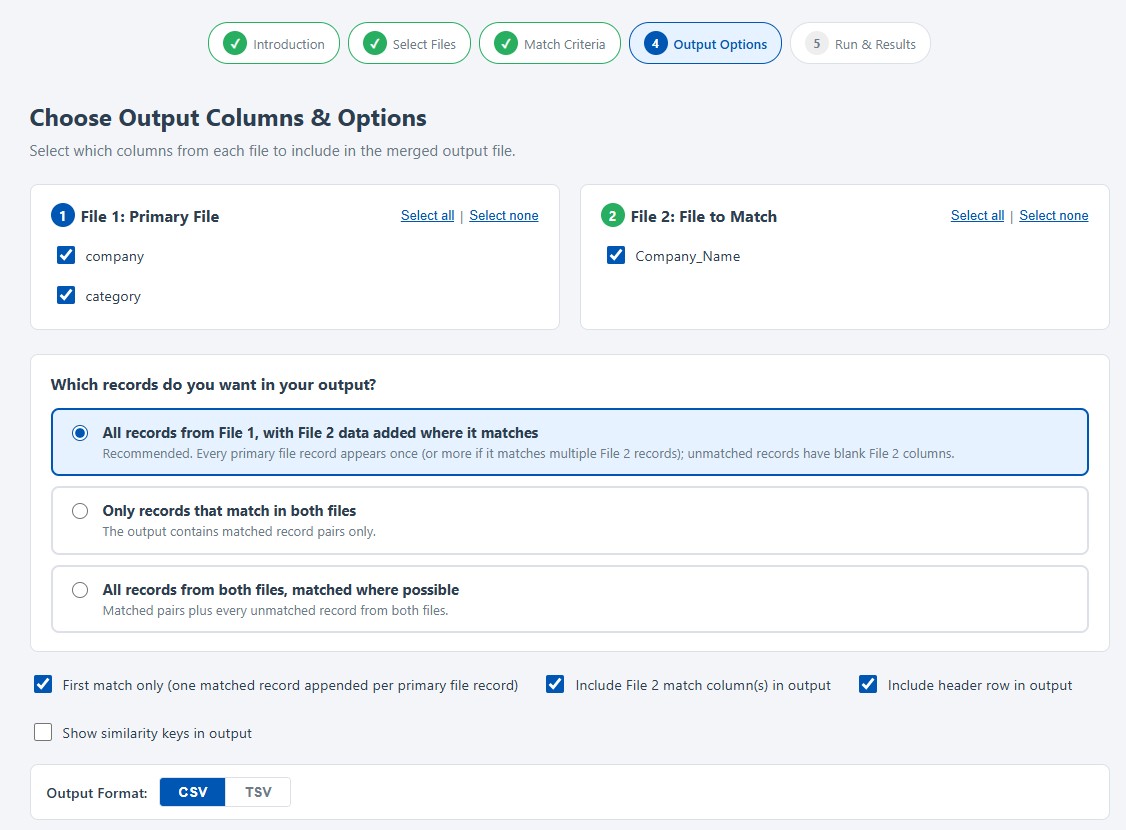
Each file shows a checklist of its columns, all checked by default, with Select all and Select none shortcuts. Checked columns from File 1 appear first in each output row, followed by checked columns from File 2.
Options
- First match only (default on): when a primary record matches multiple File 2 records, append only the first match, producing exactly one output row per matched primary record. Disable it to output every matching combination.
- Include File 2 match column(s) in output (default on): toggles the File 2 columns used in your match criteria in or out of the output checklist in one click.
- Include header row in output: writes a header line using the source files' column names.
- Show similarity keys in output: appends the generated similarity keys to each merged row for review and auditing.
Which Records Appear in the Output
| Choice | Result |
|---|---|
| All File 1 records (recommended, default) | Every primary record appears, with File 2 data appended where matched and blank File 2 columns where not. |
| Only matching records | The output contains only matched record pairs. |
| All records from both files | Matched pairs plus every unmatched record from both files. |
Finally, choose CSV or TSV as the output format, then click Next.
6Review and Run
The final screen shows a summary of all your selections: both files, every match criterion, the join choice, output columns, and options. Review these carefully before proceeding.
Click the green Run Merge button to start processing. The wizard will:
- Validate your API key and confirm your account has sufficient credits for the estimated cost of the entire job before any processing begins.
- Generate similarity keys for the matching columns of every record in both files using concurrent workers for performance.
- Join the records according to your criteria and produce the merged output along with unmatched exception reports for both files.
While the job runs, the wizard displays "Performing similarity match analysis and merging files." Most jobs complete within seconds; larger files take longer.
When processing completes, a row of statistics summarizes the result: matched pairs, output rows, unmatched primary file records, unmatched file-to-match records, and credits used. If any primary records matched more than one File 2 record, a highlighted note reports the count and explains the effect on row totals.
7Interpret the Results
The results panel presents three sections:
- Merged Results: the joined output, one row per merge, containing your selected columns from File 1 followed by your selected columns from File 2.
- Unmatched Primary File: every File 1 record that found no match in File 2.
- Unmatched File to Match: every File 2 record that was never claimed by a File 1 record.
Example Output
Merging a customer file (company, city) with a revenue file (company, revenue) on a fuzzy company name criterion:
Company,City,Company,Revenue
Acme Manufacturing,Chicago,ACME MFG CORP,584000
Global Industries Inc,Dallas,Global Industries,1250000
Northwind Traders,Seattle,Northwind Traders LLC,310500
Summit Partners,Denver,,
The first three rows merged despite differently written company names on each side. The last row is a primary record with no match: its File 2 columns are blank because the recommended "All File 1 records" option keeps every primary record in the output. The unmatched exception reports quantify the gap between the two datasets and provide a concrete worklist for remediation.
8Save Your Results
Buttons above the results panel let you download each section as its own file:
- Save Merged File: the merged output in your chosen CSV or TSV format.
- Unmatched Primary File: the File 1 exception report.
- Unmatched File to Match: the File 2 exception report.
On supported browsers a save dialog appears so you can choose the file name and location; on others the file downloads automatically. A Clear Results button empties the results panel when you want to start fresh.
All output values are whitespace-trimmed, and the files contain clean delimited text ready for import into spreadsheets, databases, or downstream data processing tools.
The Merge Wizard makes it easy to combine two datasets that could never be joined before, matching through inconsistent company names, individual names, and addresses with multiple criteria combinations for precision. The guided, no-code workflow delivers a clean merged file plus complete exception reporting that improves the quality, completeness, and value of your data assets. If you have any questions or need assistance, don't hesitate to reach out to our support team.